
Food inventory affects nearly every operational decision in a restaurant, café, catering company, cloud kitchen, commissary kitchen, cafeteria, or multi-location food service business.
When ingredient records are incomplete or stock counts are unreliable, managers may order too much, run out of important products, overlook spoilage, or make menu decisions using outdated cost information.
A cloud-based food inventory system creates a centralized place to manage ingredients, stock levels, supplier prices, purchase orders, receiving records, waste, recipes, and operational reports.
Authorized employees can access the information from connected devices instead of relying on paper count sheets, separate spreadsheets, or files stored on one computer.
However, software alone does not produce accurate inventory information. The quality of the results depends on how carefully the business plans its workflows, cleans its data, configures item records, standardizes units of measure, trains employees, and maintains the system after launch.
This guide explains how to Set Up a Cloud-Based Food Inventory System from initial planning through long-term maintenance. It is designed to help food service operators build practical inventory workflows that support purchasing, food cost tracking, waste reduction, production planning, and better day-to-day decisions.
What Is a Cloud-Based Food Inventory System?
A cloud-based food inventory system is an online platform used to record, organize, and monitor ingredients, beverages, packaging, supplies, and other inventory items. The system stores information on remote servers so approved users can access current inventory records through a web browser, tablet, or mobile device.
Depending on the available features, a cloud food inventory system may support physical inventory counts, par levels, reorder points, low-stock alerts, supplier management, purchase orders, receiving, invoice matching, recipe costing, waste tracking, transfers, and reporting.
The system becomes the central inventory record for the operation. Instead of maintaining separate documents for ordering, counting, costing, and waste, teams can work from a connected set of records.
A structured cloud-based food inventory system can also help operators see how purchasing, ingredient usage, and physical stock relate to one another. That visibility is especially valuable when several managers, storage areas, kitchens, or business locations share responsibility for inventory.
How Cloud Food Inventory Systems Work
Cloud inventory systems maintain inventory information in an online database. When an authorized employee enters a delivery, completes a count, records waste, transfers stock, or updates a supplier price, the new information becomes available to other permitted users.
Each inventory item normally has a record containing information such as:
- Item name and category
- Purchase unit and pack size
- Count unit
- Recipe unit
- Storage location
- Preferred supplier
- Current price
- Par level
- Reorder point
- Expiration or lot information, where appropriate
The platform may calculate current stock by combining beginning inventory, purchases, transfers, estimated usage, waste, and adjustments. Actual physical counts can then be compared with expected stock to identify inventory variance.
Cloud access allows a manager to review counts from another location, a purchasing employee to create an order from current stock information, and a kitchen manager to record waste from a mobile device. User permissions determine which records and functions each person can access.
Cloud-Based Inventory vs. Manual Inventory
Manual inventory methods usually depend on printed sheets, handwritten notes, spreadsheets, email messages, and individual knowledge. These methods may work for a small operation with a limited menu, but they become harder to control as the number of ingredients, employees, suppliers, recipes, and locations increases.
A spreadsheet can calculate totals, but it may not automatically update supplier prices, connect menu sales to ingredient usage, restrict access by role, or show who changed a record. Multiple spreadsheet versions can also create uncertainty about which file is current.
A cloud food inventory system gives employees a shared source of information. Counts, orders, receipts, waste entries, and reports can follow consistent workflows rather than being stored in disconnected files.
The goal is not simply to replace paper with a screen. A successful food inventory system setup creates repeatable processes for how inventory information is entered, reviewed, corrected, and used.
Why Food Service Businesses Need Cloud Inventory Setup

Food service inventory changes constantly. Deliveries arrive, recipes consume ingredients, products move between storage areas, employees prepare batches, customers place orders, and some stock is wasted or spoiled.
Without a structured inventory process, the recorded quantity can quickly become different from the quantity physically available. Managers may not discover the difference until a product runs out, a supplier invoice is reviewed, or a weekly food cost report appears unusually high.
Cloud inventory management for restaurants and other food operations creates a framework for recording these movements consistently. It can help teams understand what is available, what has been ordered, what has been used, and where unexplained losses may be occurring.
Effective setup can support:
- More consistent inventory counts
- Better purchasing decisions
- Clearer food cost information
- Fewer avoidable shortages
- Improved waste visibility
- More accurate recipe costing
- Faster reporting
- Better coordination across locations
These benefits depend on reliable data. Incorrect units, duplicate ingredients, outdated supplier prices, or incomplete receiving records can make automated reports just as misleading as poorly maintained spreadsheets.
Better Inventory Visibility
A cloud-based system can provide a more current view of stock levels than disconnected paper records. Managers may be able to review inventory by item, category, storage area, department, or location.
Low-stock alerts can draw attention to items approaching their reorder point. Open purchase orders show what has already been requested, while receiving records indicate what actually arrived.
This visibility helps prevent two common problems: ordering an item that is already available and assuming an item is available when it has already been used.
For multi-location businesses, centralized reporting can help leadership compare stock, purchasing, and waste across sites. Location managers can still manage local needs while following shared standards for item names, units, and reporting.
Better Cost Control
Ingredient costs change as supplier pricing, pack sizes, availability, and purchasing patterns change. When these updates are recorded accurately, food cost tracking software can provide a clearer picture of recipe costs and purchasing trends.
Reliable inventory counts also support cost-of-goods-used calculations. A general operational formula compares beginning inventory, purchases, and ending inventory to estimate the inventory consumed during a period.
Recipe costing adds another layer by connecting ingredient quantities and current prices to menu items or prepared products. The resulting information can help managers review portion standards, menu costing, vendor changes, and waste patterns.
These reports are operational tools rather than substitutes for professional accounting or financial advice. Businesses should have their accounting methods, reporting classifications, and tax treatment reviewed by qualified professionals.
Cloud-Based Food Inventory System Setup at a Glance
The following table summarizes the major areas involved in a cloud-based food inventory system setup.
| Setup Step | What to Configure | Why It Matters | Best Practice |
| Inventory items | Ingredients and supplies | Builds the inventory database | Use clear, consistent item names |
| Units of measure | Pounds, ounces, cases, portions, and eaches | Supports accurate counts and costing | Standardize every conversion |
| Storage areas | Walk-ins, dry storage, freezers, bars, and prep areas | Makes counting more efficient | Arrange count sheets by physical location |
| Par levels | Target stock quantities | Helps prevent shortages and excess stock | Base pars on actual demand |
| Vendor records | Suppliers, catalogs, prices, and delivery schedules | Supports organized purchasing | Review prices regularly |
| Purchase orders | Ordering and approval workflow | Reduces ordering errors | Define approval responsibility |
| Receiving | Delivery quantities, substitutions, and invoice checks | Keeps stock and cost records accurate | Record deliveries when received |
| Waste tracking | Spoilage, mistakes, spills, and overproduction | Reveals hidden inventory losses | Require a reason for each entry |
| Reports | Inventory, purchasing, cost, variance, and waste dashboards | Supports operational decisions | Review a small set consistently |
| Permissions | User roles and access | Protects sensitive records | Provide only necessary access |
How to Use the Table
Use the table as an implementation roadmap rather than treating every setup area as a separate software feature. Each row represents an operational decision that should be made before or during configuration.
For example, adding inventory items requires more than entering ingredient names. The team must decide how products will be categorized, where they will be counted, which units will be used, and how supplier pack sizes will convert into recipe quantities.
Assign an owner to each setup area and document the decisions made. A kitchen manager may lead storage-location mapping, while a purchasing manager may verify suppliers, pack sizes, and order rules.
Complete the basic inventory foundation before adding advanced integrations or dashboards. Reports will only become useful after items, units, prices, counts, and inventory movements are reliable.
Why Setup Priorities Depend on Business Type
A small café may focus first on beverages, dairy products, baked goods, packaging, and daily low-stock checks. A full-service restaurant may place more emphasis on recipe costing, bar inventory, protein yields, and weekly physical counts.
A cloud kitchen inventory system may need shared ingredient tracking across several delivery brands. A catering inventory management system may prioritize event quantities, production sheets, batch recipes, and delivery schedules.
A commissary kitchen inventory system may require central purchasing, large-batch production, transfers, location requests, and distribution tracking. Multi-location operations may also need standardized item records and consolidated reporting.
The best setup order is therefore based on operational risk. Configure the workflows that affect daily accuracy and continuity before adding less frequently used features.
Step One: Define Inventory Goals
Before creating inventory records, decide what the system should improve. Without clear goals, the implementation may become a long feature-configuration project with no practical definition of success.
Goals should reflect current operational problems. One business may need to reduce emergency purchases, while another may need consistent weekly counts across five locations.
Common goals include:
- Establishing a regular count schedule
- Improving food cost visibility
- Reducing unexplained inventory variance
- Tracking supplier price changes
- Preventing stockouts
- Reducing spoilage and overproduction
- Standardizing purchasing approvals
- Improving recipe and menu costing
- Creating consolidated multi-location reports
Document the starting condition where possible. For example, record how many emergency orders occur in a typical month or how long a full inventory count currently takes.
Set Practical Inventory Goals
A practical goal connects an operational behavior with a measurable result. “Improve inventory” is too broad to guide configuration.
More useful goals include:
- Complete a full inventory count every week.
- Record all deliveries on the day they arrive.
- Add a reason to every waste entry.
- Review low-stock items before placing supplier orders.
- Update major supplier prices after each invoice.
- Investigate high-value inventory variances every week.
- Reduce duplicate and inactive inventory records.
Choose a small number of goals for the first phase. Teams are more likely to adopt a system when they understand the immediate operational purpose behind each task.
Avoid Overcomplicating the First Setup
Inventory platforms may include forecasting, automated ordering, detailed recipe yields, invoice processing, lot tracking, and extensive integrations. Trying to configure every capability before launch can delay adoption and overwhelm employees.
Begin with the workflows required to maintain trustworthy stock information:
- Item records
- Units of measure
- Storage locations
- Counts
- Purchasing
- Receiving
- Waste
- Basic reports
Advanced capabilities can be added once employees complete these processes consistently. A simple, reliable workflow usually creates more value than an elaborate system that staff do not understand.
Step Two: Map Current Inventory Workflows
Document how inventory currently moves through the business. This creates a baseline for deciding what the system must support and where responsibilities are unclear.
Start with ordering. Identify who decides what to order, how quantities are calculated, which suppliers are used, and who approves purchases.
Continue through receiving, storage, preparation, service, waste, transfers, and counting. Record where information is written down, entered into a spreadsheet, communicated verbally, or not recorded at all.
A simple workflow map might show:
Supplier order → delivery → receiving check → storage → recipe or production use → waste or transfer → physical count → management report
Identify Current Inventory Problems
Ask employees where errors or delays normally occur. Common problems include:
- Duplicate ingredient names
- Missing supplier prices
- Unrecorded substitutions
- Inconsistent pack sizes
- Counts performed in different units
- Items stored in several unlisted areas
- Deliveries entered days late
- Waste recorded only occasionally
- Purchase decisions based on memory
- Multiple versions of count sheets
- No clear process for inventory corrections
These issues should influence the setup plan. For example, if different employees count chicken by cases, pounds, and individual packages, unit standardization must be resolved before the item is added.
Involve Kitchen and Purchasing Teams
The people who order, receive, store, count, prepare, and use ingredients understand the operational details that may not be visible to administrators.
Ask receiving employees about common substitutions and short deliveries. Ask inventory counters which storage areas are difficult to navigate. Ask chefs and production managers how ingredients are measured in recipes.
Involving employees also improves adoption. Staff are more likely to use a workflow consistently when their practical concerns were considered during setup.
The project should still have a clear decision-maker. Collaborative input is valuable, but one person should approve naming standards, units, categories, and workflow rules.
Step Three: Clean Up Existing Inventory Data
Existing inventory data often contains duplicate products, outdated prices, inactive menu ingredients, inconsistent vendor names, and missing unit conversions. Importing this information without review can create confusion from the first day.
Gather the available sources, including spreadsheets, supplier catalogs, invoices, recipe cards, count sheets, storage labels, and purchasing records. Compare them to identify conflicts.
Create a master data-cleanup file before importing information into the food stock management software. Use the file to record the approved item name, category, unit, pack size, supplier, price, and storage area.
Why Clean Data Matters
Inventory reports depend on consistent item records. If “tomato,” “tomatoes,” and “Roma tomato case” are entered as separate items, the system may divide purchasing, usage, and count history across three records.
Incorrect pack sizes can distort inventory valuation. A case recorded as six packages when the supplier actually delivers twelve can affect stock quantities and recipe costs.
Outdated prices can make recipe costing and food cost reports appear better or worse than current conditions. Missing storage locations can cause counters to overlook products.
Data cleanup is therefore part of inventory control, not an administrative formality.
Data Cleanup Checklist
Before importing data:
- Remove exact and near-duplicate items.
- Archive ingredients no longer used.
- Standardize singular and plural naming.
- Separate different product forms when operationally necessary.
- Confirm purchase units and pack sizes.
- Confirm count units.
- Confirm recipe units.
- Verify unit conversions.
- Standardize supplier names.
- Update current vendor prices.
- Assign categories.
- Assign storage locations.
- Identify high-value and highly perishable items.
- Mark records requiring lot or expiration tracking.
- Separate inventory items from non-inventory expenses.
Keep a copy of the cleaned master file. It can serve as a reference if questions arise during migration or pilot testing.
Step Four: Build Ingredient and Item Records
Each ingredient or supply should have a record that tells employees what the item is, how it is purchased, how it is counted, where it is stored, and how its cost is calculated.
A useful item record may include:
- Standard item name
- Description or brand specification
- Inventory category
- Purchase unit
- Pack size
- Count unit
- Recipe unit
- Unit conversion
- Primary storage location
- Preferred supplier
- Alternate supplier
- Current price
- Par level
- Reorder point
- Product code or supplier code
- Notes about substitutions or quality standards
Avoid entering unnecessary detail that employees will not maintain. Every required field should have a clear operational purpose.
Naming Inventory Items Clearly
Choose a naming structure and apply it consistently. A useful format may include the ingredient, product form, and pack information.
Examples include:
- Chicken breast, boneless, case
- Tomato, Roma, fresh
- Cheese, cheddar, shredded
- Oil, canola, 35-pound container
- Cup, cold beverage, 16-ounce
Do not rely only on supplier descriptions because suppliers may use abbreviations or change catalog wording. The internal name should make sense to the employees who count and use the item.
Avoid creating separate records for the same ingredient simply because it is purchased from another supplier. Use vendor associations within one item record unless the products are operationally different.
Organizing Items by Category
Categories help employees filter count sheets, purchasing lists, and reports. Common categories include:
- Produce
- Dairy
- Meat
- Poultry
- Seafood
- Dry goods
- Frozen foods
- Beverages
- Alcoholic beverages
- Bakery
- Prepared foods
- Packaging
- Paper products
- Cleaning supplies
Keep the category structure manageable. Too many narrow categories can make reporting and item entry harder.
Subcategories may be useful for large operations, but they should be applied consistently. For example, a commissary may divide proteins into raw meat, cooked meat, poultry, and seafood, while a small café may use one protein category.
Step Five: Standardize Units of Measure
Units of measure are among the most important parts of food inventory software setup. They connect the quantity purchased, the quantity counted, and the quantity used in recipes.
An ingredient may be purchased by the case, counted by the package, and used by the ounce. The system needs accurate conversions between these units.
Common units include:
- Case
- Bag
- Box
- Pack
- Each
- Pound
- Ounce
- Gallon
- Quart
- Pint
- Liter
- Milliliter
- Portion
- Serving
Choose units that employees can identify consistently during counts.
Why Unit Conversion Matters
Consider an ingredient purchased as a case containing four 5-pound bags. The case contains 20 pounds. If a recipe uses ounces, the system must also recognize that the case contains 320 ounces.
An incorrect conversion affects several outputs:
- Available stock
- Inventory valuation
- Recipe cost
- Suggested order quantity
- Estimated usage
- Inventory variance
- Food cost percentage
Test important conversions manually before launch. High-cost proteins, cooking oils, dairy products, and frequently used ingredients deserve particular attention.
Count Units vs. Purchase Units vs. Recipe Units
The purchase unit is how the supplier sells the product. The count unit is how employees measure it during inventory. The recipe unit is how the kitchen uses it.
For example:
- Purchase unit: one case
- Pack size: four 5-pound bags
- Count unit: one bag
- Recipe unit: one ounce
The correct conversion is one case equals four bags, and one bag equals 80 ounces.
Select count units that match the physical process. If employees can easily count sealed bags but cannot accurately estimate pounds, use bags for routine counts and permit fractional quantities where needed.
Step Six: Add Storage Locations
Storage locations organize inventory according to where products are physically kept. Examples include walk-in coolers, freezers, dry storage rooms, beverage stations, bars, prep kitchens, catering storage, and cleaning closets.
Arrange items within the system in the same sequence employees encounter them during a count. This reduces backtracking and helps prevent missed products.
A location record may identify:
- Business location
- Department
- Storage room
- Shelf or zone
- Responsible manager
- Count frequency
Avoid using one general location such as “kitchen” when inventory is spread across several areas.
Making Counts Faster With Storage Areas
A physical inventory count should follow a predictable path. Employees should be able to begin at one point, move through the area once, and finish without repeatedly searching for items.
Create count sheets or mobile count lists that mirror shelf order. Store similar items together where operationally practical.
When one ingredient appears in several areas, decide whether the system will combine the quantities under one item or use location-specific subrecords. The correct approach depends on whether managers need separate visibility by station.
Clear storage locations also make training easier. A new employee can follow the count path without relying entirely on memory.
Multi-Location Storage Setup
Multi-location businesses benefit from shared naming standards. For example, every site might use “Walk-In Cooler,” “Dry Storage,” and “Main Freezer” as standard location names.
Local differences should still be allowed. One site may have a separate bar cooler or catering staging area that does not exist elsewhere.
Create a central item catalog where possible, then associate items with the locations that actually stock them. This prevents employees from scrolling through irrelevant products.
Location transfers should be recorded when products move between stores, kitchens, or brands. Otherwise, one site may appear to have unexplained usage while another shows unexplained excess inventory.
Step Seven: Set Par Levels and Reorder Points
A par level is the target quantity an operation wants available for a product. A reorder point is the stock level at which a new order should be considered.
These values help turn inventory records into purchasing decisions. However, unrealistic par levels can create excess stock, shortages, or frequent false alerts.
Factors influencing par levels include:
- Historical usage
- Forecast sales
- Menu mix
- Delivery frequency
- Supplier lead time
- Storage capacity
- Minimum order quantities
- Shelf life
- Seasonal demand
- Upcoming events
- Availability of substitutes
How to Set Practical Par Levels
Begin with recent usage and delivery schedules. If an ingredient is used at an average rate of two cases per day and deliveries arrive every three days, the base requirement is approximately six cases.
Add an appropriate buffer for demand changes and supplier uncertainty without ignoring spoilage risk or storage limits. Highly perishable products usually need tighter pars than stable dry goods.
Cloud kitchen and catering demand may fluctuate substantially, so open orders and scheduled events should be included. A static par may not be sufficient for every operating model.
Document why each major par was selected. This makes future review easier.
Reviewing Par Levels Over Time
Par levels are not permanent. Menu changes, supplier schedules, customer demand, preparation methods, and storage capacity may all change.
Review pars when:
- An item frequently stocks out
- Excess stock repeatedly expires
- Delivery days change
- A menu item is added or removed
- Portion sizes change
- A supplier changes pack size
- Seasonal demand begins or ends
- A new location opens
Use usage history and waste reports rather than adjusting pars only from memory. Small, regular corrections are usually more effective than large, infrequent changes.
Step Eight: Set Up Vendor and Supplier Records
Supplier records connect inventory items to purchasing information. Each record should contain enough detail to support ordering, delivery checks, and price review.
Useful supplier information includes:
- Supplier name
- Contact information
- Customer account reference
- Ordering method
- Delivery days
- Order cutoff times
- Minimum order amount
- Item catalog
- Supplier product codes
- Pack sizes
- Current pricing
- Substitution practices
- Payment or invoice reference details
Operational records should be reviewed by the appropriate professional when they affect accounting, tax, contractual, or regulatory obligations.
Tracking Vendor Pricing
Supplier pricing affects inventory valuation, recipe costing, menu costing, and purchasing decisions. Update prices from invoices or approved vendor feeds rather than relying on old catalog information.
Keep price history where the system supports it. A price trend may explain why a recipe cost increased even when portion size and usage remained stable.
The food cost tracking process becomes more useful when current ingredient prices, recipe quantities, and physical counts are maintained together.
Price should not be the only purchasing consideration. Pack size, product yield, delivery reliability, quality, and substitution frequency also affect operational cost.
Vendor Comparison and Backup Suppliers
Associate alternate suppliers with important ingredients where appropriate. This helps purchasing teams respond when the preferred supplier is out of stock or cannot deliver on time.
Vendor comparison should consider:
- Delivered price
- Pack size
- Usable yield
- Product quality
- Delivery reliability
- Lead time
- Minimum order requirements
- Substitution accuracy
- Return handling
Document acceptable substitutions for critical items. This prevents receiving employees from accepting a product that cannot be used in the intended recipe or production process.
Step Nine: Configure Purchase Orders and Receiving
Purchase orders create a record of what the operation requested from a supplier. Receiving records show what actually arrived.
Connecting these workflows helps managers identify shortages, substitutions, over-deliveries, price differences, and items received without authorization.
Define who can create, approve, change, and submit purchase orders. The process should be controlled without becoming unnecessarily slow.
Purchase Order Setup
Configure purchase-order fields such as:
- Supplier
- Delivery location
- Requested delivery date
- Item
- Quantity
- Purchase unit
- Expected price
- Notes
- Requester
- Approver
- Status
Suggested orders may use current stock, par levels, reorder points, open orders, and forecast usage. Employees should still review suggestions before submission.
Use approval rules based on operational needs. A location manager may approve routine orders, while unusually large purchases may require another review.
Receiving and Invoice Matching
Receiving should occur when the delivery arrives, not several days later. The receiving employee should compare the delivery with the purchase order and available invoice or delivery document.
Check:
- Product identity
- Quantity
- Pack size
- Condition
- Substitutions
- Missing items
- Unexpected items
- Price differences
- Lot or expiration details where required
Record partial deliveries accurately. Do not mark an entire purchase order as received when some products are missing.
Receiving workflows should align with applicable storage and food-handling procedures. The FDA’s retail food protection resources provide educational references, but businesses should obtain professional guidance for requirements that apply to their specific operation.
Step Ten: Enter Recipes and Menu Connections
Recipe records connect inventory items to prepared products and menu items. They support recipe costing, estimated ingredient usage, batch production, and menu analysis.
A complete recipe may include:
- Ingredient quantities
- Recipe units
- Yield
- Portion size
- Number of portions
- Preparation loss
- Cooking yield
- Subrecipes
- Batch recipes
- Garnishes
- Modifiers
- Packaging
Begin with high-volume and high-cost menu items rather than attempting to enter every recipe at once.
Recipe Costing Setup
Recipe costing uses ingredient quantities and current item costs to estimate the cost of producing a recipe or portion.
For accuracy:
- Use standardized recipes.
- Confirm recipe yields.
- Include garnishes and sauces.
- Include packaging where operationally relevant.
- Account for trim or preparation loss appropriately.
- Update supplier prices.
- Test unit conversions.
- Review portion standards.
Recipe cost is an operational estimate. Accounting classification, financial reporting, tax treatment, and profitability analysis should be reviewed by qualified professionals.
Connecting Sales to Inventory Usage
POS integration can map menu-item sales to recipes. When a menu item is sold, the system estimates the ingredients that should have been used.
This creates theoretical usage, which can be compared with actual usage based on physical counts. The difference may indicate portion variation, waste, unrecorded transfers, receiving errors, or incorrect recipe mappings.
Review modifier logic carefully. Extra cheese, side substitutions, size variations, and optional ingredients may affect usage.
Read more about connecting food cost tracking with POS data before deciding how detailed the menu mapping should be.
Step Eleven: Set Up Waste and Spoilage Tracking
Waste tracking records inventory that is no longer available for sale or production. Without a waste entry, the system may treat the missing quantity as unexplained usage or inventory variance.
Common waste causes include:
- Spoilage
- Expiration
- Overproduction
- Preparation mistakes
- Incorrect orders
- Spills
- Dropped products
- Returned food
- Quality rejection
- Excess trimming
- Equipment problems
- Damaged packaging
Make waste entry quick enough that employees will complete it during normal operations.
Create Simple Waste Categories
Use categories that employees can understand without interpretation. Too many overlapping choices can lead to inconsistent entries.
A practical starting list might include:
- Expired
- Spoiled
- Overproduced
- Preparation error
- Customer return
- Spill or damage
- Quality issue
- Trim loss
- Other
Require a short note for unusual or high-value waste. Avoid requiring long explanations for every small entry.
Use Waste Logs to Improve Operations
Review waste by item, category, location, shift, and reason. Look for patterns rather than assigning blame based on one incident.
Repeated expiration may suggest that pars are too high or stock rotation is inconsistent. Frequent overproduction may indicate weak forecasting or unclear prep lists.
Preparation errors may reveal a training need, while quality rejections may require supplier review.
Expiration and storage workflows should align with appropriate product-handling guidance. FDA information on storing food safely can provide general educational context, but it does not replace professional review of the requirements that apply to a specific food service operation.
Step Twelve: Configure Reports and Dashboards
Reports turn inventory entries into operational information. Begin with reports that answer specific questions rather than filling the dashboard with every available metric.
Useful reports may include:
- Current stock levels
- Low-stock items
- Inventory valuation
- Inventory variance
- Purchase history
- Supplier price changes
- Waste by reason
- Usage by item
- Recipe costs
- Food cost trends
- Open purchase orders
- Receiving differences
- Transfers
- Slow-moving inventory
- Expiring products
Define who reviews each report, how often it is reviewed, and what action should follow.
Reports Managers Should Review First
A beginner reporting set can include:
- Low-stock report: Identifies products approaching reorder points.
- Inventory variance report: Compares expected inventory with physical counts.
- Waste report: Shows losses by item and reason.
- Purchase history: Shows quantities and prices purchased over time.
- Food cost trend: Highlights changes in ingredient or recipe costs.
- Open-order report: Shows products ordered but not fully received.
Schedule a weekly review and record follow-up actions. A report that no one uses does not improve inventory control.
Avoid Dashboard Overload
Too many metrics can make important exceptions harder to see. Start with a dashboard that reflects the initial inventory goals.
For example, a business focused on shortages may prioritize low-stock alerts, open purchase orders, and supplier availability. A business focused on waste may prioritize expiration, spoilage, and inventory variance.
Add reports only when the team can explain what decision each report supports.
Step Thirteen: Set User Roles and Permissions
Role-based access controls which features and records each user can view or change.
Typical roles may include:
- Owner or administrator
- Operations manager
- Location manager
- Purchasing employee
- Receiving employee
- Inventory counter
- Kitchen manager
- Production employee
- Reporting reviewer
- Accounting reviewer
Users should have enough access to complete their work without receiving unnecessary authority to change pricing, recipes, supplier records, or historical transactions.
Role-Based Access
An inventory counter may need access to mobile count sheets but not supplier pricing or user administration. A purchasing employee may need to create orders but not approve them above a defined limit.
A kitchen manager may need to record waste, view stock, and review prep requirements. A reporting reviewer may need read-only access.
Document each role before creating individual accounts. This is easier to maintain than assigning unique permissions to every employee.
Use individual accounts rather than shared passwords so activity can be traced and access can be removed without affecting other users.
Reviewing Permissions Regularly
Review access when an employee changes roles, transfers locations, or leaves the business. Also perform a periodic account review to identify inactive users.
Check:
- Active users
- Administrator access
- Approval authority
- Location access
- Export permissions
- Supplier and price-editing rights
- Integration credentials
- Shared devices
Access policies may involve privacy, employment, security, or regulatory considerations. Seek appropriate professional guidance for obligations affecting the operation.
Step Fourteen: Connect Integrations Carefully
Integrations can reduce duplicate entry by connecting the inventory system with POS platforms, accounting exports, online ordering services, supplier systems, and production tools.
An integration should solve a defined workflow problem. Adding connections simply because they are available can create unnecessary complexity.
Before activation, confirm:
- Which system is the source of truth
- Which fields are exchanged
- How often data synchronizes
- How item mappings work
- How errors are reported
- Who monitors failures
- How historical corrections are handled
- What happens if the connection is unavailable
POS Integration for Inventory Usage
POS integration can send menu-item sales to the inventory platform. Mapped recipes then estimate ingredient usage.
Test the integration with a small menu group before enabling the full catalog. Confirm that sizes, modifiers, combos, refunds, voids, and open-price items are handled correctly.
Theoretical usage should not replace physical inventory counts. It provides a comparison point for investigating differences.
Mapping should be reviewed whenever recipes, menu items, or POS buttons change.
Accounting and Reporting Exports
Inventory and purchasing systems may export supplier invoices, purchase summaries, or inventory values for bookkeeping review.
Define account mappings and reporting periods with the appropriate accounting professional. Do not assume the software’s default categories match the business’s required accounting treatment.
Reconcile exported totals with source records during the pilot. Duplicate exports, missing invoices, date differences, and tax treatment can create discrepancies.
Step Fifteen: Train Staff on Inventory Workflows
Training should focus on the tasks each role performs. Employees do not need to learn every feature.
Inventory counters should know how to find items, enter whole and partial quantities, identify units, save counts, and report missing records.
Receiving employees should know how to open purchase orders, record actual quantities, document substitutions, note price differences, and handle partial deliveries.
Managers should know how to review reports, investigate variance, update par levels, and correct records without deleting useful history.
Train Staff by Role
Create short role-based training sessions:
- Counters: Storage paths, count units, fractional quantities, and mobile entry
- Purchasing staff: Suggested orders, approval rules, suppliers, and open orders
- Receiving staff: Delivery checks, substitutions, shortages, and invoice matching
- Kitchen staff: Waste logging, transfers, and production usage
- Managers: Reports, corrections, permissions, and review routines
- Administrators: Item setup, unit conversions, user access, and integrations
Provide a written reference for common tasks. Include screenshots or approved examples where useful.
Use Real Kitchen Examples
Training should use actual inventory items and storage locations. Employees learn more effectively when they count the same products they handle during normal work.
Practice scenarios might include:
- Counting a partial bag
- Receiving fewer cases than ordered
- Accepting an approved substitution
- Recording spoiled produce
- Transferring prepared sauce to another location
- Finding a missing item
- Correcting an incorrect unit
- Reviewing a low-stock alert
Observe employees performing the task rather than relying only on verbal confirmation.
Step Sixteen: Run a Pilot Count
A pilot tests the configuration in a controlled part of the operation. Choose one storage area, department, category, or location.
A good pilot area contains enough variety to test units, locations, partial quantities, and supplier records without involving the entire organization.
Complete the count using the same devices and employees planned for launch. Compare the result with the current method and investigate major differences.
What to Test During the Pilot
Test:
- Item names
- Item search
- Categories
- Storage sequence
- Purchase units
- Count units
- Unit conversions
- Partial quantities
- Missing products
- Duplicate records
- User permissions
- Saving and submitting counts
- Low-stock alerts
- Inventory valuation
- Variance reports
- Mobile connectivity
- Correction workflows
Ask counters to document confusing wording or unnecessary steps immediately.
Fix Problems Before Full Launch
Correct structural issues before adding more locations or items. A unit error repeated across hundreds of records is more difficult to repair after launch.
Pilot results may reveal that item names are too long, count lists do not match shelf order, or staff lack access to a required feature.
Repeat the pilot if major changes are made. Launch only when the essential workflow can be completed reliably.
Step Seventeen: Launch the System and Monitor Results
Choose a go-live date after the pilot and communicate what will change. Clarify which old records or spreadsheets will stop being used.
Assign a launch leader and a backup contact. Create an issue log for missing items, incorrect units, access problems, integration errors, and reporting questions.
Consider beginning with an opening physical count. This gives the system a verified starting quantity before regular receiving, usage, waste, and transfer entries begin.
Choose a Low-Risk Launch Period
Avoid launching during peak service periods, major events, seasonal surges, large catering orders, menu changes, or staff shortages.
Select a period when managers can observe workflows and correct issues promptly. Ensure that receiving, purchasing, kitchen, and inventory employees know the launch schedule.
Do not introduce several unrelated operational changes on the same day. Employees should be able to distinguish inventory-system issues from other process changes.
Review Early Issues Daily
During the first few weeks, review:
- Missing items
- Incorrect units
- Duplicate records
- Unrecorded deliveries
- Unusual waste entries
- Inventory variance
- Staff access
- Failed integrations
- Price differences
- Open purchase orders
- Unused or confusing reports
Resolve root causes rather than repeatedly correcting symptoms. If employees select the wrong unit, the item label or training may need improvement.
Cloud Kitchen Inventory System Setup
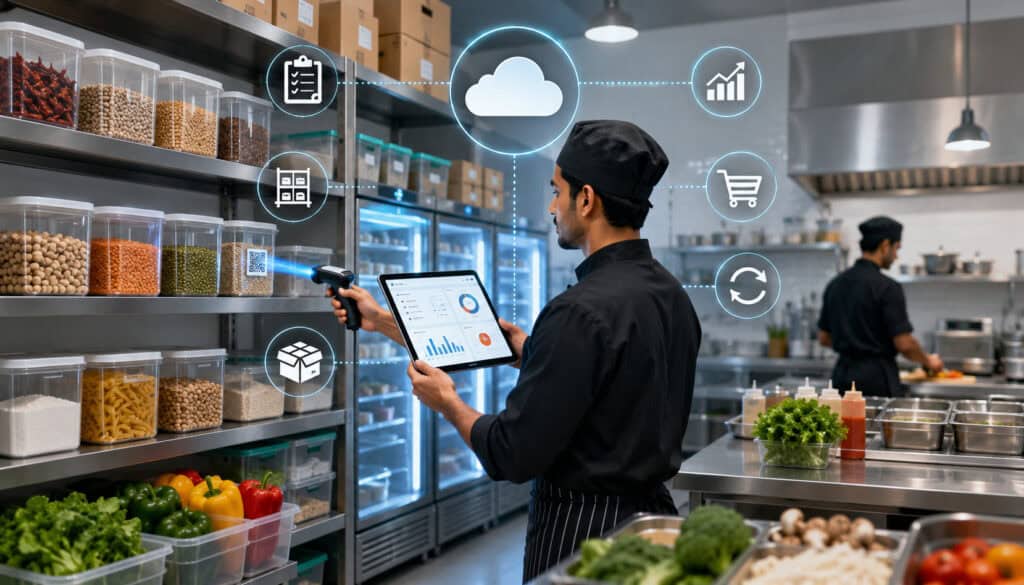
A cloud kitchen may operate several brands from one production space. The same chicken, sauce, packaging, or produce item may be used across many menus.
The inventory design should prevent duplicate ingredient records for each brand unless the products are genuinely different. Shared ingredients should connect to multiple recipes while remaining one inventory item.
The cloud kitchen inventory system may also need:
- Brand-level recipe mappings
- Delivery-platform sales connections
- Shared storage locations
- Packaging inventory
- Menu availability controls
- Production schedules
- Batch preparation
- Inter-brand usage reporting
Shared Ingredient Tracking
Create one approved record for each shared ingredient and associate it with every relevant recipe. This provides a consolidated view of purchasing and stock while allowing usage analysis by menu item or brand.
Standardize recipe units and yields. If two brands prepare the same sauce differently, decide whether they require separate recipes or one shared batch recipe.
Track packaging carefully. Delivery operations may use several containers, lids, labels, bags, and utensils for each order.
Demand Forecasting for Delivery Operations
Use order history by day, time, brand, and menu item to support purchasing and production planning. Delivery demand may change quickly due to promotions, weather, events, or platform visibility.
Forecasts should guide rather than automatically determine orders. Review upcoming promotions, menu availability, supplier lead times, and current stock.
Compare forecast demand with actual sales and waste. This helps improve future par levels and prep quantities.
Catering Inventory Management System Setup
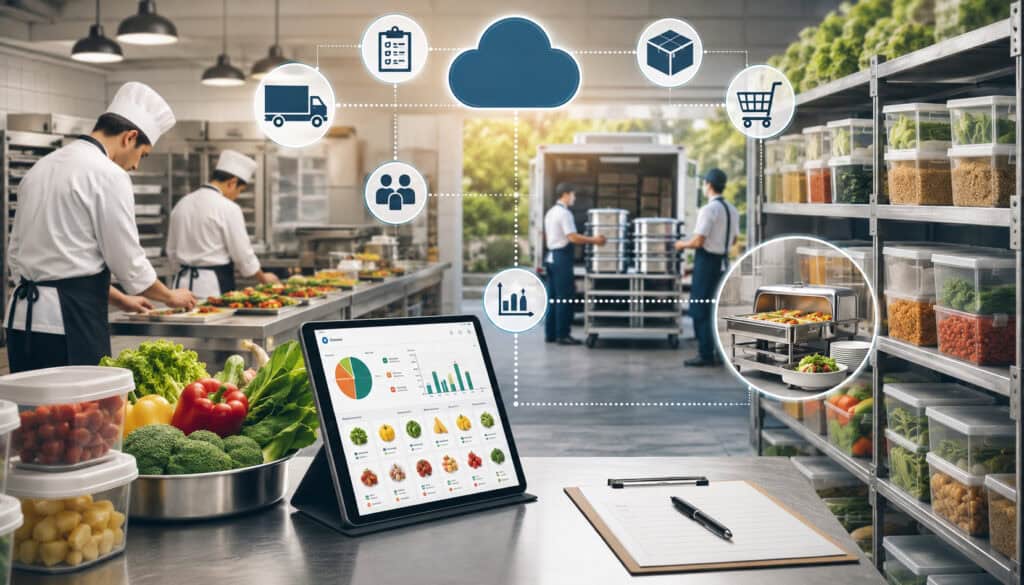
Catering inventory is closely connected to event schedules, guest counts, selected menus, production dates, and delivery requirements.
Unlike routine restaurant demand, catering usage may occur in large planned quantities. The system should help translate event details into ingredient and supply requirements.
A catering inventory management system may include:
- Event records
- Guest counts
- Menu selections
- Batch recipes
- Production sheets
- Purchasing requirements
- Packaging and disposable supplies
- Delivery dates
- Staging areas
- Returned inventory
Event-Based Inventory Planning
Connect each confirmed event to menu items and quantities. The system can then calculate estimated ingredient requirements using recipe yields.
Review current stock before ordering the full event requirement. Account for other events and normal operations using the same ingredients.
Record last-minute guest-count or menu changes. Production and purchasing requirements should update from the approved event details.
Production Sheets and Batch Recipes
Batch recipes convert event requirements into practical production quantities. A recipe yielding 25 portions may need to be prepared four times for a 100-person event.
Production sheets can show:
- Required quantity
- Batch count
- Preparation date
- Assigned station
- Storage instructions
- Packaging
- Event destination
- Completion status
Record unused or returned products consistently so inventory remains accurate after the event.
Commissary Kitchen Inventory System Setup
A commissary kitchen purchases ingredients centrally, produces prepared components, and distributes products to other kitchens, stores, or brands.
Its inventory system must track both raw ingredients and finished or semi-finished batches. Transfers are especially important because stock moves between organizational locations.
A commissary kitchen inventory system may need:
- Central purchasing
- Location requests
- Production orders
- Batch recipes
- Yield tracking
- Finished-goods inventory
- Lot or batch references
- Transfer records
- Distribution schedules
- Location-level receiving
Batch Production Inventory
Create recipes for sauces, doughs, soups, proteins, bakery products, and other centrally produced items. Each production batch should reduce raw ingredient inventory and increase prepared-product inventory.
Record actual yield when it differs materially from the standard yield. Repeated differences may indicate preparation, portioning, or recipe issues.
Where traceability is operationally or legally required, seek professional guidance on lot, batch, labeling, date-marking, and record-retention procedures.
Transfers Between Locations
Use transfer records whenever products move from the commissary to another kitchen or store. The sending location should decrease inventory, and the receiving location should confirm the quantity received.
Record:
- Transfer date
- Origin
- Destination
- Item
- Quantity
- Unit
- Sender
- Receiver
- Discrepancy
- Batch or lot reference where applicable
Do not record transfers as purchases or waste. Each transaction type should reflect what physically occurred.
Common Mistakes When Setting Up Food Inventory Software
Many implementation problems come from rushing the foundational work. Adding items quickly may create the appearance of progress, but errors in units, pack sizes, prices, and locations can undermine every report.
Common mistakes include:
- Importing unclean data
- Creating duplicate items
- Using vague names
- Ignoring storage layout
- Mixing purchase and count units
- Setting arbitrary par levels
- Leaving prices outdated
- Skipping receiving procedures
- Making waste entry too difficult
- Giving every user administrator access
- Enabling integrations without testing
- Launching without a pilot
- Training all roles the same way
- Reviewing reports inconsistently
The best practices for cloud food inventory software begin with consistent processes and reliable data rather than advanced automation.
Inconsistent Units of Measure
Unit mistakes can create dramatic reporting errors. A case counted as an individual item or a pound entered as an ounce changes stock, value, usage, and recipe cost.
Display the count unit clearly on mobile lists. Include pack details in the item description where useful.
Restrict changes to unit conversions after launch. A conversion change can affect historical comparisons and current quantities.
Test high-value items by manually calculating the expected inventory value.
Not Updating Vendor Prices
Outdated prices reduce the usefulness of recipe-cost and purchasing reports. A recipe may appear stable even though its major ingredients have become more expensive.
Assign responsibility for price updates. Prices may be updated from receiving records, invoices, supplier integrations, or periodic catalog review.
Investigate unusual changes before accepting them. A price difference may result from a substituted product, different pack size, delivery charge, or entry error.
Cloud-Based Food Inventory System Setup Checklist
Use this checklist to track implementation progress.
| Setup Area | What to Confirm | Why It Matters | Status |
| Goals | Inventory priorities are clear | Keeps the project focused | Not started / In progress / Done |
| Workflow map | Ordering through reporting is documented | Identifies process gaps | Not started / In progress / Done |
| Data cleanup | Duplicates and inactive items are removed | Improves accuracy | Not started / In progress / Done |
| Items | Ingredients and categories are added | Builds inventory records | Not started / In progress / Done |
| Units | Purchase, count, and recipe units are configured | Supports accurate quantities and costing | Not started / In progress / Done |
| Locations | Storage areas are configured | Speeds up counts | Not started / In progress / Done |
| Par levels | Target quantities and reorder points are added | Supports purchasing | Not started / In progress / Done |
| Vendors | Suppliers, products, pack sizes, and prices are entered | Organizes purchasing | Not started / In progress / Done |
| Purchase orders | Ordering and approvals are configured | Improves purchasing control | Not started / In progress / Done |
| Receiving | Delivery and discrepancy workflows are tested | Protects inventory accuracy | Not started / In progress / Done |
| Recipes | Ingredients, yields, and portions are mapped | Supports usage and costing | Not started / In progress / Done |
| Waste | Waste reasons and entry procedures are added | Tracks losses | Not started / In progress / Done |
| Reports | Initial dashboards are reviewed | Guides decisions | Not started / In progress / Done |
| Permissions | Role access is tested | Protects records | Not started / In progress / Done |
| Integrations | Data mappings and errors are tested | Reduces synchronization problems | Not started / In progress / Done |
| Training | Employees complete role-based practice | Supports adoption | Not started / In progress / Done |
| Pilot | A controlled count is completed | Identifies setup errors | Not started / In progress / Done |
| Launch | Go-live responsibilities are assigned | Supports a controlled rollout | Not started / In progress / Done |
How to Use the Checklist
Review the checklist during planning, configuration, pilot testing, and post-launch review. Assign a responsible person and target date to each area.
Do not mark an area complete simply because data was entered. Confirm that the workflow has been tested by the employee who will use it.
After launch, revisit the checklist after the first full count cycle and again after several weeks. Some weaknesses only become visible after repeated ordering, receiving, and counting.
Records to Keep After Setup
Maintain organized records such as:
- Approved ingredient list
- Unit-conversion reference
- Supplier catalog and price history
- Physical inventory counts
- Purchase orders
- Receiving records
- Invoices
- Waste logs
- Transfer records
- Recipe cards
- Production records
- Training notes
- Permission reviews
- Integration mappings
- Inventory reports
- Correction logs
Retention requirements may vary. Obtain professional guidance for legal, tax, accounting, employment, food safety, and regulatory recordkeeping obligations.
Best Practices for Setting Up Food Inventory Software
The most effective inventory systems are built around repeatable operational behavior.
Follow these best practices:
- Start with clean inventory data.
- Use consistent item names.
- Standardize units of measure.
- Verify pack sizes.
- Organize storage locations clearly.
- Arrange count lists by physical shelf order.
- Set realistic par levels.
- Maintain current supplier pricing.
- Use purchase orders.
- Record deliveries when received.
- Document substitutions and shortages.
- Track waste from the beginning.
- Train staff by role.
- Run a pilot count.
- Review reports weekly.
- Investigate significant variance.
- Connect POS data where useful.
- Keep the first setup manageable.
- Review permissions regularly.
- Seek qualified guidance for legal, tax, accounting, payroll, employment, food safety, and regulatory questions.
Creating a Repeatable Inventory Workflow
A repeatable workflow specifies who performs each task, when it is performed, which unit is used, and how exceptions are handled.
For example:
- Counts are completed every Monday before deliveries.
- One employee counts while another reviews high-value items.
- Purchase orders use current stock and approved pars.
- Receiving is completed at delivery.
- Waste is entered before the end of the shift.
- Managers review variance and waste every week.
Document the workflow and use it during onboarding. Consistency makes trends easier to interpret because changes in reports are less likely to be caused by different counting methods.
Building Long-Term Adoption
Implementation does not end on the launch date. Item records, prices, menus, suppliers, employees, and storage layouts will continue to change.
Schedule maintenance responsibilities:
- Weekly report review
- Regular supplier-price updates
- Monthly inactive-item review
- Periodic par-level review
- Permission audits
- Recipe checks
- Integration monitoring
- Refresher training
- Storage-location updates
Recognize employees who identify data problems and improve workflows. The system should be treated as a shared operational tool rather than an administrative burden.
How to Choose a Cloud-Based Food Inventory System
Software selection should begin with workflow requirements. A long feature list is not useful if employees cannot complete counts, receiving, waste entry, and reporting efficiently.
Evaluate:
- Inventory item setup
- Unit conversions
- Mobile inventory counts
- Storage-location organization
- Par levels and reorder points
- Supplier pricing
- Purchase orders
- Approval workflows
- Receiving
- Invoice matching
- Waste logs
- Recipe and menu costing
- Batch production
- Transfers
- Lot or expiration tracking
- Reporting
- User permissions
- Multi-location support
- POS integration
- Accounting exports
- Online ordering integration
- Data import and export
- Training
- Support
- Reliability
- Pricing structure
- Ease of use
A useful guide to choosing a cloud inventory solution is to compare the software against real tasks performed by employees, not only demonstration features.
Questions to Ask Before Choosing Inventory Software
Ask potential providers:
- Can items have separate purchase, count, and recipe units?
- How are pack-size conversions configured?
- Can count sheets follow storage order?
- Can employees count on mobile devices?
- Can several locations share a central item catalog?
- How are par levels and reorder points managed?
- Does the system track supplier price history?
- Can purchase orders require approval?
- How are substitutions and partial deliveries recorded?
- Can invoices be compared with orders and receipts?
- How are recipes, subrecipes, and batch yields handled?
- Can POS sales estimate ingredient usage?
- How are waste and spoilage recorded?
- Does the system support transfers?
- What reports are included?
- Can reports be exported?
- How are roles and permissions configured?
- What integrations are available?
- How are synchronization errors reported?
- What training and support are included?
- How is data exported if the business changes systems?
- What costs may apply beyond the subscription?
Request a demonstration using representative ingredients, units, recipes, locations, and purchasing scenarios.
Comparing Workflow Fit Over Feature Lists
A system with fewer well-designed features may be more useful than a complex platform employees struggle to use.
Test the complete workflow:
- Add an ingredient.
- Configure its pack size.
- Count a partial quantity.
- Set a par.
- Create a purchase order.
- Receive a substitution.
- Record waste.
- Use the ingredient in a recipe.
- Review inventory variance.
- Export a report.
Observe how many steps are required and whether the terminology makes sense to employees. Consider data accuracy, usability, support, integrations, and long-term operational value together.
Frequently Asked Questions
What is a cloud-based food inventory system?
A cloud-based food inventory system is an online platform that helps food service businesses record and monitor ingredients, supplies, stock levels, purchases, deliveries, waste, recipes, and reports.
Because the information is stored online, authorized employees can access it from connected devices and locations according to their permissions.
How do you set up a cloud-based food inventory system?
Start by defining inventory goals and documenting current ordering, receiving, storage, counting, waste, and reporting workflows.
Clean existing data, create item records, standardize units, configure storage locations, set par levels, add suppliers, and establish purchasing and receiving procedures. Then configure waste, reports, permissions, integrations, and recipes as needed.
Train employees by role, complete a pilot count, correct problems, and launch during a manageable operating period.
What data is needed for food inventory system setup?
Typical data includes item names, categories, pack sizes, purchase units, count units, recipe units, conversions, storage locations, supplier records, prices, par levels, and reorder points.
Businesses may also need recipes, yields, menu mappings, waste reasons, user roles, location lists, opening inventory counts, and integration mappings.
Why are units of measure important in food inventory software?
Units connect purchasing, counting, and recipe usage. An ingredient may be purchased by the case, counted by the bag, and used by the ounce. If the conversion is wrong, stock quantities, recipe costs, inventory valuation, purchase suggestions, and variance reports may also be wrong.
How can a cloud food inventory system help reduce waste?
The system can record waste by item, quantity, location, employee, and reason. Reports can then show patterns involving expiration, spoilage, overproduction, preparation mistakes, or quality issues.
Managers can use these patterns to adjust par levels, purchasing, prep schedules, storage rotation, recipes, and training.
Can food inventory software help track food costs?
Yes. The software can combine supplier prices, inventory counts, purchases, and recipe quantities to estimate ingredient usage and recipe costs.
The accuracy depends on current prices, correct units, standardized recipes, complete receiving records, and reliable physical counts. Professional accounting review may still be needed for formal financial reporting.
What mistakes should businesses avoid during food inventory software setup?
Avoid importing unclean data, creating duplicate items, using inconsistent units, setting arbitrary pars, ignoring supplier-price updates, and skipping employee training.
Businesses should also avoid enabling integrations without testing, giving excessive user access, and launching the entire system before completing a pilot.
How should operators choose a cloud-based food inventory system?
Compare each system with actual workflows. Test item entry, mobile counting, unit conversions, purchasing, receiving, waste tracking, recipes, transfers, reports, permissions, and integrations.
Consider employee usability, data export, support, implementation requirements, and total cost rather than selecting software only by the number of features.
Conclusion
Learning how to Set Up a Cloud-Based Food Inventory System requires more than choosing software and importing a spreadsheet. A reliable implementation begins with clear goals, mapped workflows, clean data, and consistent operating standards.
Accurate item records, standardized units of measure, organized storage locations, realistic par levels, current vendor pricing, controlled purchase orders, careful receiving, waste tracking, and useful reports form the foundation of effective food service inventory management.
Staff training and pilot testing are equally important. Employees must understand how to count products, receive deliveries, document waste, manage transfers, and correct errors consistently.
After launch, managers should review inventory variance, supplier prices, waste patterns, stockouts, and workflow problems regularly. Item records and permissions should be updated as menus, suppliers, employees, and locations change.
A cloud inventory project should therefore be treated as an operational workflow improvement rather than only a software installation.
When the system reflects real kitchen processes and employees maintain the data consistently, it can support better inventory visibility, more organized purchasing, clearer food cost tracking, reduced waste, and stronger long-term operational efficiency.