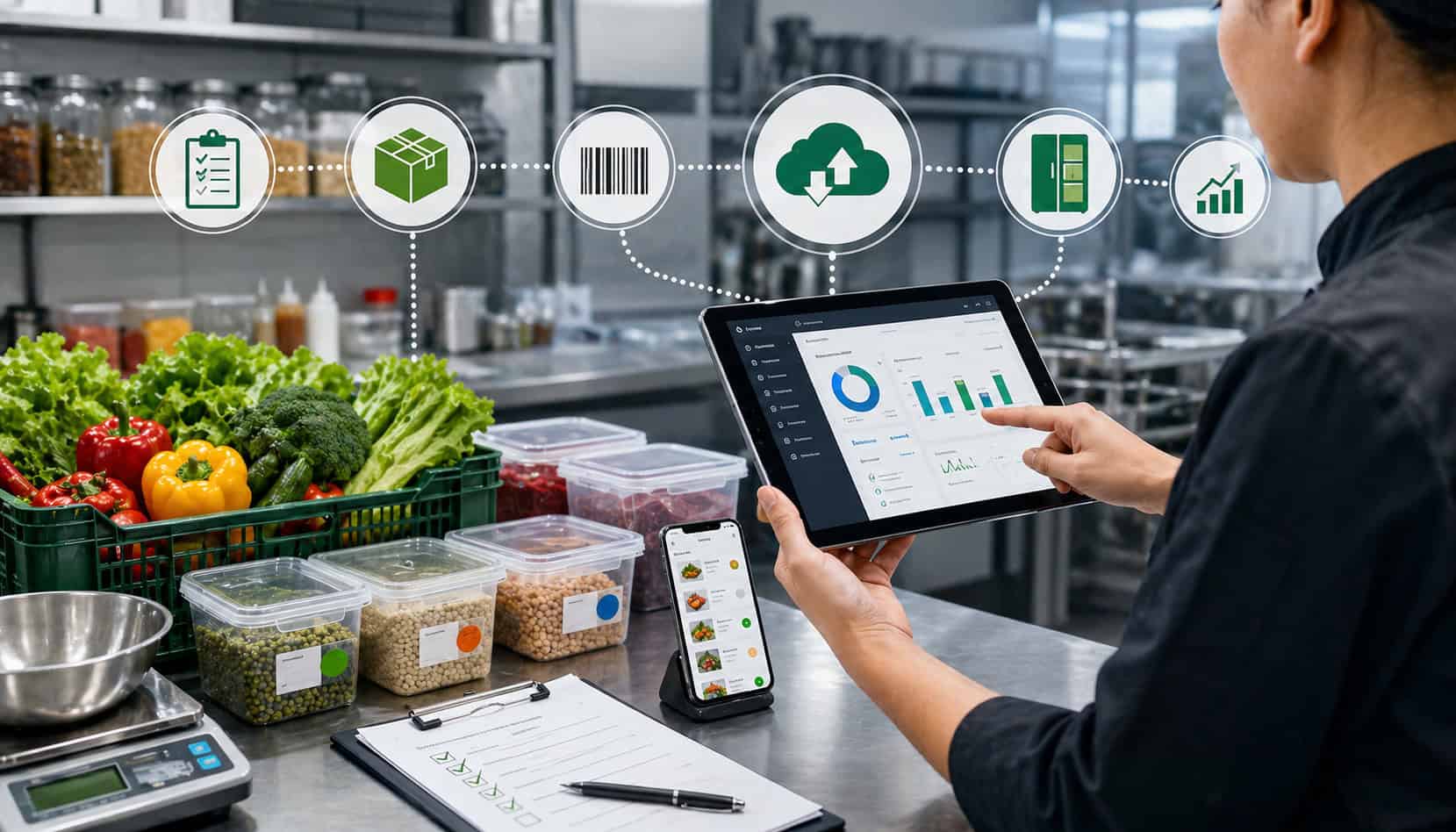
Running a busy kitchen without accurate inventory visibility can quickly become expensive. Paper logs get misplaced, spreadsheets fall out of date, and team members often rely on memory when checking stock, placing orders, or planning prep.
That creates a cycle of overordering, emergency purchases, missing ingredients, food waste, and unclear food cost control.
A digital inventory system helps kitchen teams move from guesswork to real-time visibility. Instead of waiting for delayed counts or searching through handwritten notes, managers can see what is on hand, what is running low, what is expiring soon, and what needs to be ordered.
This makes daily prep planning, supplier coordination, restaurant stock control, and food inventory tracking more reliable.
For restaurant owners, chefs, catering businesses, food service operators, and hospitality teams, the goal is not only to track stock. The goal is to build a kitchen inventory management system that supports better purchasing decisions, reduces waste, protects margins, and keeps service running smoothly.
This guide explains how to Set Up a Digital Inventory System for Your Kitchen step by step, from auditing your current process to training staff, setting par levels, connecting recipes, and reviewing reports.
What Is a Digital Inventory System for a Kitchen?
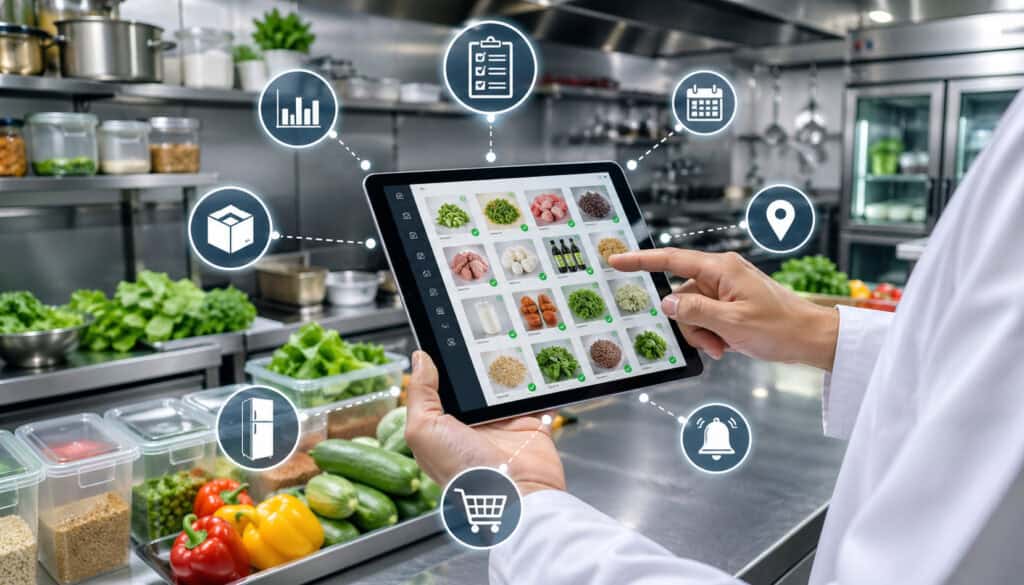
A digital inventory system for kitchen operations is software that helps track ingredients, supplies, quantities, costs, storage locations, expiration dates, vendors, and usage patterns in one organized place.
Instead of relying on paper count sheets or disconnected spreadsheets, the kitchen team uses a digital platform to record stock levels, receive deliveries, monitor usage, and generate reports.
A strong ingredient inventory system usually includes item names, categories, units of measure, supplier details, purchase prices, storage areas, par levels, reorder points, and waste logs. Some systems also connect to recipes, purchasing, and POS data so managers can see how ingredient usage affects menu profitability.
This is useful because kitchen inventory is rarely simple. A single item may be purchased by the case, stored by the pound, used by the ounce, and cost by the portion. Without a structured system, those unit conversions can lead to inaccurate reporting and poor purchasing decisions.
A digital inventory tracking for kitchen setup can help teams:
- Count inventory faster on mobile devices
- Track stock by storage location
- Set reorder alerts
- Monitor supplier pricing
- Reduce duplicate orders
- Track waste and spoilage
- Improve food cost control
- Support recipe costing and menu planning
For kitchens comparing manual methods with modern tools, this overview of cloud food inventory management gives helpful context on how cloud-based inventory systems support real-time stock visibility.
Why Your Kitchen Needs a Digital Inventory System
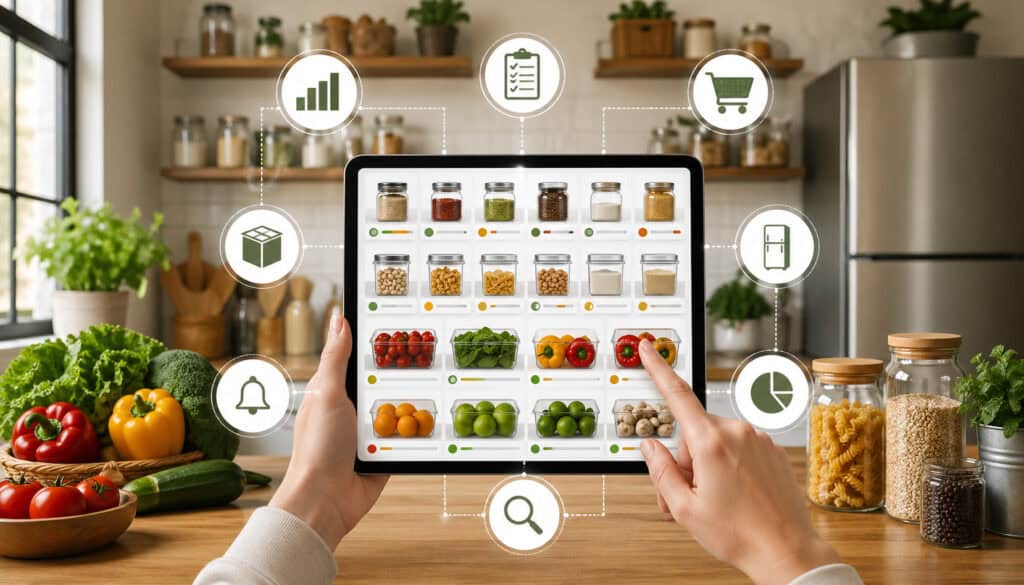
Manual inventory tracking often works when a kitchen is small, menus are limited, and the same person handles ordering every time. But as order volume grows, staff responsibilities change, or multiple storage areas are added, manual tracking becomes harder to control.
A kitchen inventory app or restaurant inventory software gives the team a shared source of truth. Managers no longer need to ask several people whether an item was counted, ordered, received, wasted, or moved. The system records those actions and makes the information easier to review.
The biggest benefit is accuracy. Digital inventory tracking reduces errors caused by unreadable handwriting, duplicate spreadsheet entries, outdated prices, and inconsistent units. It also saves time during inventory counts because staff can count by category, location, or item list on a phone, tablet, or workstation.
Another major benefit is waste reduction. When teams can see expiration dates, slow-moving stock, and overordered items, they can adjust prep, purchasing, and menu specials before food spoils. This supports better kitchen stock management and improves profitability.
A digital inventory system also improves communication. Chefs, purchasing managers, receivers, and owners can work from the same information instead of passing updates through text messages, sticky notes, or verbal reminders.
Digital inventory helps kitchens:
- Avoid running out of key ingredients during service
- Reduce overordering and excess storage
- Improve supplier order accuracy
- Track price changes more clearly
- Understand food cost trends
- Make better prep and purchasing decisions
- Improve accountability across the team
Step 1: Audit Your Current Kitchen Inventory Process
Before you set up kitchen inventory system software, review how inventory is currently managed. This audit helps you understand what is working, where errors happen, and what your new system needs to solve.
Start by mapping the full inventory workflow. Look at how items are ordered, received, stored, counted, transferred, wasted, and reported. Identify who handles each step and what tools they use. For example, one person may order from suppliers, another may receive deliveries, and another may update the spreadsheet at the end of the week.
Ask practical questions:
- How often are inventory counts completed?
- Who is responsible for counting?
- Are counts done by item, category, or storage area?
- Where are item costs recorded?
- How are supplier price changes updated?
- How is waste recorded?
- How are par levels decided?
- What causes emergency orders?
- Which items are often missing or overstocked?
This step gives you a clear picture of your current inventory habits. It also helps you avoid copying bad processes into a new digital system.
For example, if your current spreadsheet has five names for the same ingredient, importing that data into software will create confusion. If your team does not record waste, the system will not show true usage. If supplier prices are outdated, recipe costs will be inaccurate.
Identify Common Inventory Problems
Common inventory problems often repeat until the kitchen creates a better process. Duplicate orders are one example. A chef may request more product because the item was stored in the wrong area, while the purchasing manager orders it again because the count sheet shows low stock.
Missing ingredients are another frequent issue. They may be caused by inaccurate counts, unrecorded transfers, supplier shortages, or staff using items without updating the system. Expired stock is also common when items are hidden behind newer deliveries or when expiration dates are not tracked.
Look for problems such as:
- Duplicate item names
- Inconsistent units of measure
- Outdated par levels
- Supplier delays
- Missing receiving records
- Unrecorded waste
- Overstocked perishables
- Items stored in the wrong location
- High-value products with weak controls
These issues should guide your digital setup. For example, if inconsistent units are a major problem, prioritize software with unit conversion tools. If supplier delays cause stockouts, build reorder points around lead time.
Review Current Food Cost and Waste Patterns
Food cost control depends on knowing what is purchased, what is used, what is wasted, and what remains in stock. Before configuring your digital inventory system, review current food cost and waste patterns so the setup supports your real business needs.
Look at invoice history, waste logs, prep records, production sheets, and sales patterns. Identify high-cost ingredients, frequently spoiled items, and products that are often overproduced. These items should receive special attention in your system.
For example, proteins, seafood, dairy, specialty produce, and premium beverages may need tighter tracking than low-cost dry goods. If a catering business frequently overproduces sides or sauces, those recipes should be connected to usage and event forecasting.
Waste data also helps set realistic par levels. If an item regularly expires before it is used, the par level may be too high, the purchase pack size may be too large, or the menu may not use the item often enough.
Step 2: Create a Master Inventory List
Your master inventory list is the foundation of the entire kitchen inventory management system. If the list is incomplete, inconsistent, or messy, the software will produce unreliable reports.
Build a full list of everything your kitchen tracks. This includes ingredients, dry goods, refrigerated products, frozen items, packaging, cleaning supplies, disposables, beverages, bar stock, catering supplies, and specialty items. Include both high-volume products and occasional-use items.
Your list should include:
- Item name
- Category
- Storage location
- Purchase unit
- Count unit
- Recipe unit
- Supplier
- Current price
- Par level
- Reorder point
- Shelf life or expiration tracking needs
- Pack size
- Brand or specification, if needed
Do not limit the list to food items. Kitchen supply tracking is also important for disposables, gloves, containers, labels, paper goods, and cleaning supplies. These items may not affect recipe cost directly, but running out of them can disrupt service.
A clean inventory list also improves reporting. When items are categorized properly, managers can review spending by category, track high-cost areas, and identify waste patterns more easily.
Standardize Item Names and Units
Standardized naming prevents duplicate entries and reporting errors. Without naming rules, one item might appear as “Tomatoes,” “Roma tomato,” “Tomato case,” and “Fresh tomatoes.” The system may treat these as separate items even though the team sees them as the same product.
Choose a clear naming format. Many kitchens use item type, specification, and pack size. For example:
- Tomato, Roma, case
- Chicken breast, boneless, pound
- Olive oil, extra virgin, gallon
- Gloves, nitrile, medium, box
Units also need consistency. Common units include pounds, ounces, cases, bottles, each, gallons, liters, bunches, trays, and portions. The system should show how an item is purchased, counted, and used in recipes.
For example, flour may be purchased by the bag, counted by the pound, and used by the ounce. If the unit conversion is wrong, recipe costing and stock reporting will also be wrong.
Add Storage Locations and Categories
Storage locations make inventory counts faster and more accurate. Instead of scrolling through one long item list, staff can count by walk-in cooler, freezer, dry storage, prep station, bar, catering storage, or dish area.
Categories also improve visibility. A kitchen may categorize items as produce, meat, seafood, dairy, dry goods, frozen, beverages, disposables, cleaning supplies, packaging, spices, and prepared items. These categories help managers review spending, usage, and waste by type.
Good location and category setup helps with:
- Faster physical counts
- Better stock rotation
- Fewer missed items
- Clearer purchasing reports
- Easier staff training
- Better storage accountability
For catering businesses, storage locations may include event staging areas, vehicles, satellite kitchens, or off-site storage. For multi-location operators, each location should have its own inventory structure while still following shared naming standards.
Step 3: Choose the Right Kitchen Inventory Management System
Choosing the right system is one of the most important steps. Restaurant inventory software should match your kitchen’s size, workflow, team skill level, reporting needs, and growth plans.
Look for software that supports mobile counting, barcode scanning, par levels, reorder alerts, recipe costing, supplier management, purchase orders, waste tracking, reporting, multi-location support, and POS integration. Not every kitchen needs every feature on day one, but the system should support the way your operation is likely to grow.
The right kitchen inventory management system should make daily work easier, not more complicated. Staff should be able to count stock, receive deliveries, record waste, and review alerts without needing a complex workaround.
For more detail on evaluating options, this guide to choosing a cloud inventory solution explains key factors food businesses should consider when comparing systems.
| Feature | What It Does | Why It Matters |
| Mobile inventory counting | Allows staff to count items on phones or tablets | Speeds up counts and reduces paper entry errors |
| Barcode scanning | Lets staff scan products during counts or receiving | Improves speed and accuracy for packaged goods |
| Par levels | Sets ideal stock levels for each item | Helps prevent overordering and shortages |
| Reorder alerts | Notifies users when stock falls below a set point | Supports timely purchasing |
| Recipe costing | Links ingredients to recipes and portions | Improves menu profitability analysis |
| Supplier management | Stores vendor details, prices, and order history | Helps compare costs and manage purchasing |
| Purchase orders | Creates and tracks orders digitally | Reduces ordering mistakes |
| Waste tracking | Records spoiled, damaged, or discarded items | Supports waste reduction and food cost control |
| Reporting dashboards | Shows trends in stock, usage, cost, and waste | Helps managers make data-driven decisions |
| Multi-location support | Tracks stock across multiple kitchens or sites | Useful for growing operators and catering teams |
| POS integration | Connects sales to ingredient usage | Improves forecasting and recipe depletion |
Step 4: Set Par Levels and Reorder Points
Par levels define how much stock your kitchen should normally keep on hand. Reorder points define when it is time to buy more. Together, they help balance availability and cost.
Set par levels based on actual demand, not guesswork. Review menu popularity, sales trends, delivery schedules, shelf life, storage space, supplier lead time, and seasonal changes. A high-volume ingredient used daily will need a different par level than a specialty item used for one weekly menu special.
For example, a busy kitchen may need enough chicken, lettuce, cooking oil, and takeout containers to cover several service periods. But delicate herbs, fresh seafood, and short-shelf-life dairy may require lower pars and more frequent ordering.
A digital inventory system can automate reminders when items fall below reorder points. This helps managers order before stockouts happen, without overfilling storage areas.
When setting par levels, consider:
- Average daily usage
- Busy-day usage
- Delivery frequency
- Supplier minimum orders
- Storage capacity
- Shelf life
- Event schedules
- Menu changes
- Prep requirements
Avoid Overstocking Perishable Items
Overstocking perishables is one of the fastest ways to increase waste. Fresh produce, dairy, seafood, prepared sauces, and certain proteins can lose quality or expire before they are used.
Digital alerts and expiration tracking help reduce this risk. When expiration dates are recorded, managers can see which items need to be used first. This supports first-in, first-out rotation and helps chefs create specials around products that should be used soon.
A good food inventory tracking process also shows slow-moving items. If an ingredient is regularly purchased but rarely used, the kitchen can reduce the par level, change the order frequency, adjust the menu, or remove the item from standard stock.
Overstocking can also hide real problems. A packed walk-in may look prepared, but it can make counts slower, increase spoilage, and make it harder for staff to find what they need.
Prevent Stockouts During Busy Periods
Stockouts usually happen when demand rises faster than the ordering process can respond. Weekends, events, holidays, catering orders, promotions, and menu specials can all increase usage.
A digital inventory system helps prevent stockouts by combining reorder points, usage history, and sales trends. If the system shows that certain items move quickly before major service periods, managers can adjust ordering in advance.
For catering businesses, upcoming event counts should influence purchasing. If a large event requires specific proteins, sides, beverages, or disposables, those items should be reserved or flagged in the system.
Busy periods also require coordination between prep and purchasing. If prep teams use more stock than expected, they should record it promptly so buyers can respond before the next order deadline.
Step 5: Import Data and Organize the System
Once your master list is clean, begin importing data into the digital inventory system. This step includes item details, vendors, prices, categories, storage areas, user roles, permissions, tax settings, and units of measure.
Clean the data before uploading. Remove duplicate items, correct spelling differences, confirm pack sizes, update supplier names, and standardize units. Messy data creates messy reports, even in strong software.
Start with your most important items first if the full list is large. High-cost ingredients, fast-moving products, and frequently wasted items should be prioritized. Once the core items are accurate, add lower-risk supplies and secondary categories.
Organize the system around daily workflows. For example, receiving staff should see purchase orders and delivery records easily. Chefs should see recipe ingredients, stock levels, and waste entry tools. Owners or managers should see reports, food cost trends, and supplier pricing.
User permissions are important. Not every staff member should be able to change item prices, delete products, or edit supplier records. Assign access based on job responsibilities.
Step 6: Train Staff on Digital Inventory Tracking
Training is what turns software into a working system. Even the best kitchen inventory app will fail if staff do not understand how and when to use it.
Train each role based on actual responsibilities. Managers may need to review reports, approve orders, update prices, and adjust par levels. Chefs may need to check stock, review recipe costs, and record waste. Prep staff may need to count items or record production. Receivers may need to match deliveries against purchase orders.
Training should include hands-on practice. Let staff count real items, receive a test delivery, record a waste entry, and find a stock report. This builds confidence and reveals where instructions need improvement.
Also explain why the system matters. Staff are more likely to use digital inventory tracking correctly when they understand how it reduces shortages, avoids waste, improves prep planning, and prevents last-minute stress.
For teams exploring broader software features, this overview of food service management software provides examples of how inventory, ordering, costing, and reporting can work together.
Assign Clear Inventory Responsibilities
Every inventory task needs an owner. If everyone is responsible, no one is truly accountable. Assign clear roles for daily checks, weekly counts, receiving, waste logging, purchase review, price updates, and report review.
For example:
- Prep lead checks high-use ingredients each morning
- Receiver records deliveries as they arrive
- Kitchen manager reviews waste daily
- Purchasing manager approves orders
- Chef reviews recipe cost changes
- Owner or operator reviews weekly reports
Clear ownership reduces missed tasks and duplicate work. It also helps managers identify training needs when errors happen.
Responsibilities should be documented and visible. A checklist can show who does what, when it happens, and how it should be recorded in the system. This is especially helpful when staff rotate shifts or new team members join.
Create Simple Inventory SOPs
Standard operating procedures help staff use the system consistently. SOPs should explain how to count inventory, receive deliveries, record waste, update item details, review low-stock alerts, and submit purchase requests.
Keep procedures practical and task-based. A good SOP should answer:
- When should the task happen?
- Who is responsible?
- Which device or system screen is used?
- What information must be entered?
- What should staff do if something does not match?
- Who approves changes?
For example, a receiving SOP may require staff to compare delivered quantities with the purchase order, check product quality, record shortages, update received quantities, and flag price differences.
Step 7: Connect Inventory to Recipes, Purchasing, and Reporting
A digital inventory system becomes more powerful when it connects inventory to recipes, purchasing, and reporting. This turns stock counts into operational insight.
Recipe connections help track how ingredients are used in menu items. When recipes include accurate portions, units, and ingredient costs, managers can calculate recipe costs and monitor menu profitability. If supplier prices increase, the system can show how those changes affect dish costs.
Purchasing connections improve order accuracy. Instead of manually building orders from memory, managers can use par levels, reorder alerts, and usage reports to create purchase orders. Supplier information, price history, and order records also make it easier to compare vendors.
Reporting helps identify trends. A manager can review which items are wasted most often, which categories are increasing in cost, which suppliers have frequent price changes, and which products are moving faster than expected.
POS integration can add another layer of value. When sales data connects to recipe depletion, the system can estimate ingredient usage based on what was sold. This supports better forecasting and food cost control. For more detail, this guide on integrating food cost tracking with POS systems explains how sales and cost data can work together.
Step 8: Test, Review, and Improve the System
Before relying fully on the system, test it in real kitchen conditions. A test period helps identify errors in item setup, units, storage locations, permissions, reports, and staff workflows.
Start with sample inventory counts. Ask staff to count a few categories or storage areas and compare the digital results against physical stock. Look for missing items, confusing names, incorrect units, and duplicate entries.
Then test purchase orders and receive workflows. Create a sample order, receive a delivery, record shortages or substitutions, and check whether stock updates correctly. Also test waste entries, mobile access, barcode scanning, report accuracy, and user permissions.
Ask staff for feedback. They may notice issues that managers miss, such as item lists being too long, storage locations not matching the real layout, or certain tasks taking too many clicks.
After the test period, adjust the system. Update item names, fix units, revise par levels, clarify SOPs, and retrain where needed.
Common Mistakes to Avoid When Setting Up Kitchen Inventory Software
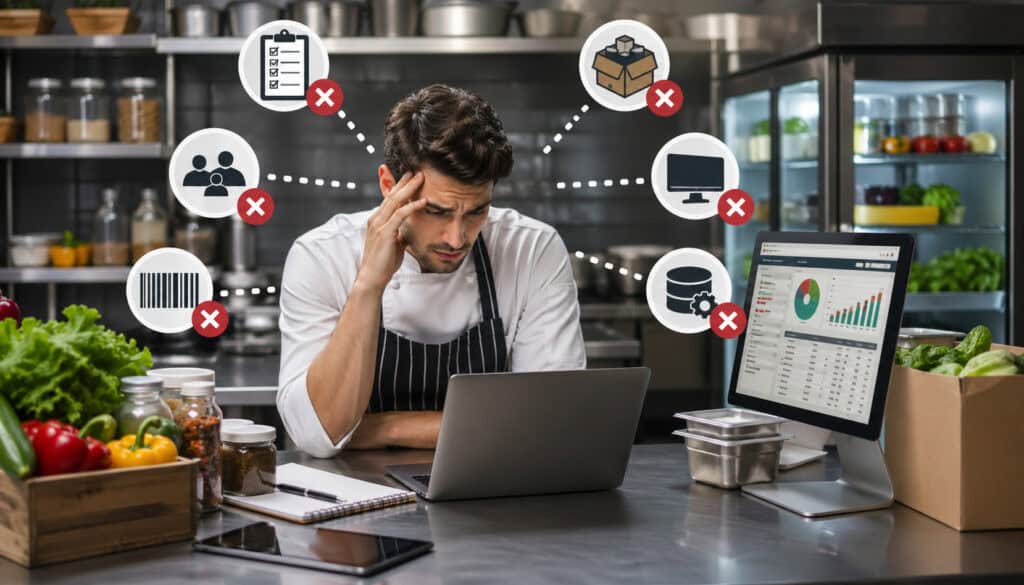
One of the biggest mistakes is importing messy data. If duplicate items, inconsistent units, outdated prices, and unclear categories enter the system, reports will be unreliable from the start.
Another mistake is skipping staff training. Managers may understand the software, but if receivers, chefs, or prep staff use it incorrectly, the inventory record will quickly drift away from reality.
Many kitchens also fail to set par levels properly. Without par levels and reorder points, the system becomes a digital list rather than an active restaurant stock control tool.
Avoid these common mistakes:
- Importing unclean spreadsheets
- Using inconsistent units
- Forgetting to update supplier prices
- Skipping staff training
- Not assigning user permissions
- Ignoring waste tracking
- Failing to review reports
- Not checking physical stock regularly
- Setting par levels once and never revisiting them
- Allowing staff to create duplicate items
Another mistake is relying only on software without physical checks. Digital records are only accurate when real-world activity is recorded correctly. Regular audits are still necessary.
Best Practices for Maintaining a Digital Kitchen Inventory System
Setting up the system is only the beginning. Maintaining it requires consistent habits, clear ownership, and regular review.
Count inventory on a set schedule. Some items may need daily checks, while others can be counted weekly or monthly. High-cost, high-use, and perishable items usually need more frequent attention.
Update supplier prices whenever invoices change. Recipe costing and food cost control depend on accurate prices. If prices are outdated, menu profitability reports will be misleading.
Review waste reports regularly. Waste data can show spoilage, overproduction, portioning issues, receiving problems, and training gaps. Use this information to adjust prep levels, par levels, and purchasing habits.
Reconcile deliveries against purchase orders. This helps catch shortages, substitutions, damaged items, and price differences. Receiving accuracy is one of the most important parts of food inventory tracking.
Track expiration dates for perishable and safety-sensitive items. Use alerts to rotate stock, plan specials, or adjust orders before products expire.
Best practices include:
- Count on a regular schedule
- Review high-value items often
- Update prices from invoices
- Record waste daily
- Reconcile every delivery
- Review par levels after menu changes
- Use reports before placing orders
- Audit storage areas regularly
- Limit editing permissions
- Keep SOPs current
FAQs
How do I set up a digital inventory system for my kitchen?
Start by reviewing your current inventory process, including how items are counted, ordered, received, stored, wasted, and reported. Then create a clean master inventory list, choose a kitchen inventory management system, import your data, set par levels, train staff, and review reports regularly.
What should be included in a kitchen inventory list?
A kitchen inventory list should include ingredients, dry goods, refrigerated items, frozen products, beverages, packaging, disposables, cleaning supplies, and specialty items. Each item should include a name, category, storage location, unit of measure, supplier, price, par level, reorder point, and shelf-life details when needed.
Can small restaurants use digital inventory tracking?
Yes. Small restaurants can use digital inventory tracking to reduce waste, avoid stockouts, control food costs, and make ordering more accurate. Even a simple kitchen inventory app can help small teams track stock more consistently than paper logs or spreadsheets.
How often should kitchen inventory be counted?
Kitchen inventory should be counted based on item value, usage, and shelf life. High-cost and fast-moving items may need daily checks, while dry goods, disposables, and slower-moving supplies may be counted weekly or monthly.
What features matter most in kitchen inventory software?
Important features include mobile counting, barcode scanning, par levels, reorder alerts, recipe costing, supplier management, purchase orders, waste tracking, reporting, user permissions, and POS integration. The best system should fit your kitchen’s workflow and be easy for staff to use.
How does digital inventory tracking reduce food waste?
Digital inventory tracking reduces food waste by showing stock levels, expiration dates, slow-moving items, and waste patterns. This helps teams adjust ordering, improve prep planning, rotate stock properly, and use ingredients before they spoil.
Do I need barcode scanning for kitchen inventory?
Barcode scanning is helpful for packaged goods, beverages, disposables, and high-volume receiving, but it is not required for every kitchen. Many fresh ingredients and prepared items still need to be counted manually by weight, case, container, or portion.
When should I upgrade from spreadsheets to inventory software?
You should upgrade when spreadsheets become hard to maintain, inventory counts are often inaccurate, prices are outdated, staff duplicate work, or the kitchen struggles with stockouts, overordering, food waste, or unclear food cost control.
Conclusion
To Set Up a Digital Inventory System for Your Kitchen, begin by understanding your current process. Audit how inventory is counted, ordered, received, stored, used, and wasted. Then build a clean master inventory list, standardize names and units, choose the right software, set par levels, train staff, and connect inventory to recipes, purchasing, and reporting.
A well-built digital inventory system for kitchen operations helps teams improve accuracy, reduce waste, prevent stockouts, control costs, and make better purchasing decisions. It also gives managers clearer visibility into what is happening across storage areas, suppliers, menus, and daily operations.
The strongest systems are not built in one day. They improve through testing, staff feedback, regular audits, and consistent reporting. With the right setup and habits, digital inventory becomes more than a tracking tool—it becomes a practical foundation for smoother, more profitable kitchen operations.